Welcome to AspectRatio! Whether you are a content creator preparing YouTube thumbnails, a video editor framing vertical clips for TikTok, or a designer creating web artboards, this walkthrough guide will show you how to use our serverless workspace to adjust media scales and coordinates.
Step 1: Define Target Grid & Presets
Before uploading, set the exact output dimensions you need. You can type in the Width and Height manually, or choose a preset from the Platform Presets dropdown menu. Enabling the Lock Aspect Ratio checkbox ensures that modifying one dimension will scale the other proportionally.
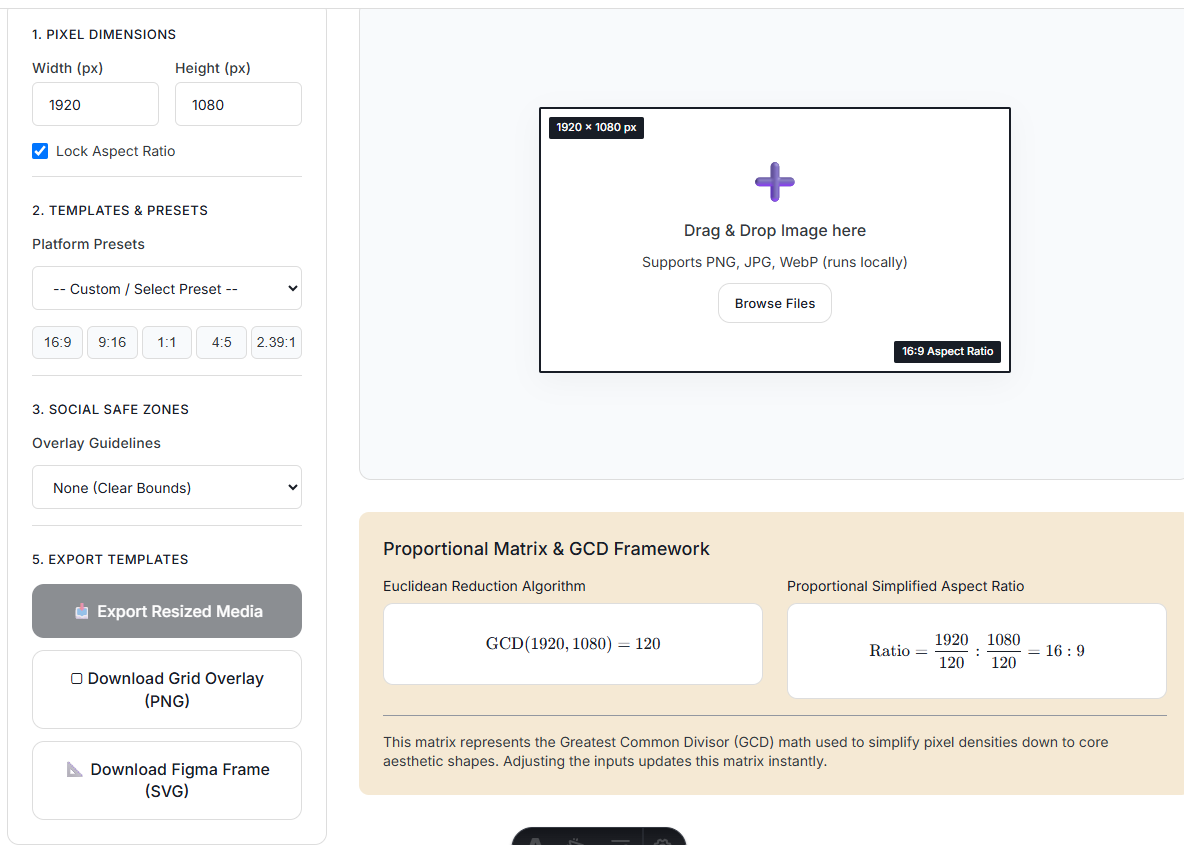 Step 1: Set output boundaries or select presets (like YouTube 16:9 or TikTok 9:16).
Step 2: Upload Your Image File
Drag your image (JPG, PNG, or WebP) directly onto the workspace, or click Browse Files to select an image from your computer. The image is processed locally inside your browser—it is never sent to any server. It is immediately loaded and centered in the workspace crop box.
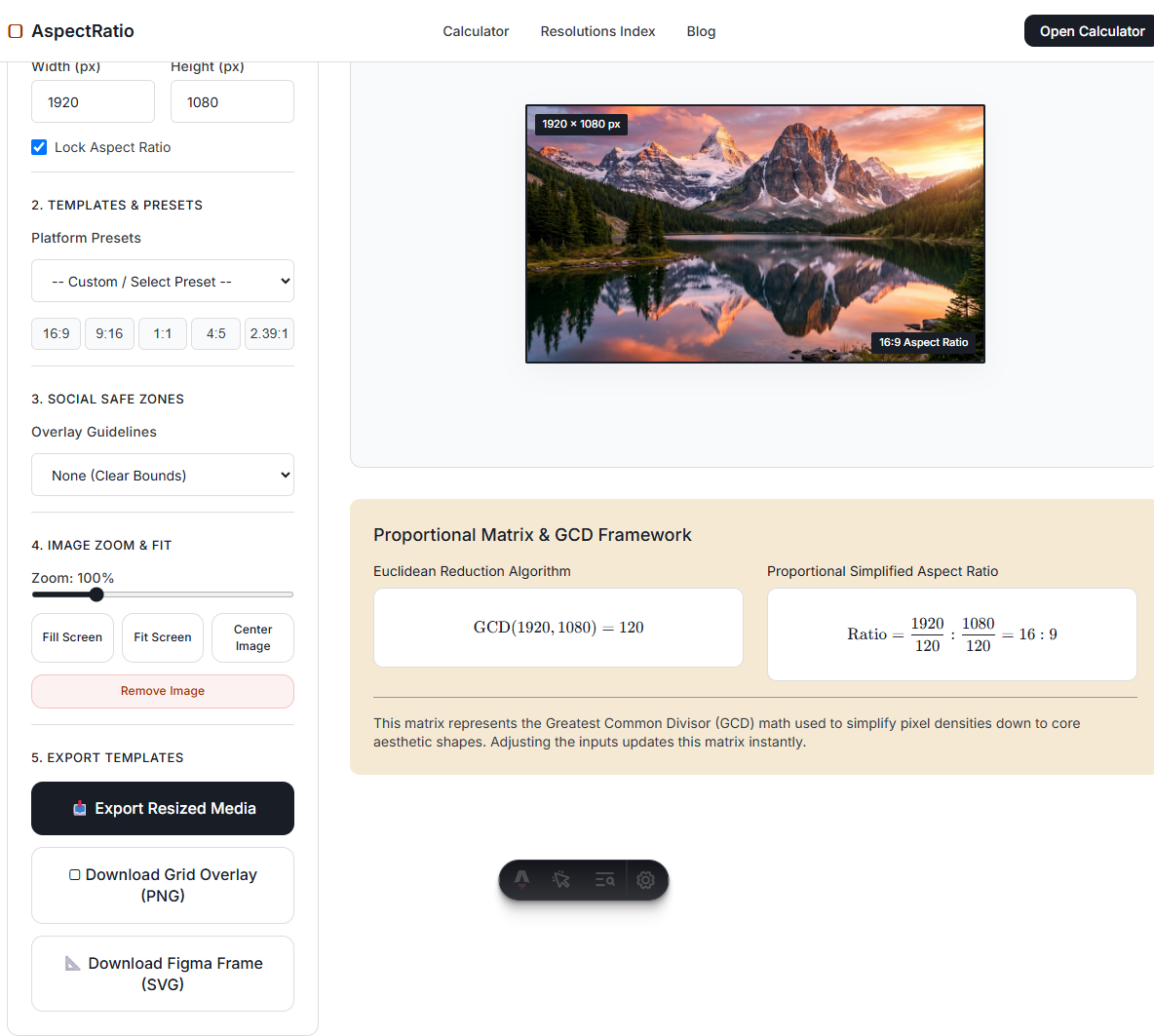 Step 2: Uploaded image loads instantly and centers automatically.
Step 3: Resizing, Zooming, and Panning
Use the mouse or finger to drag the image around within the crop box to frame it. To adjust scale, drag the Zoom Slider. The slider is relative, meaning 100% is always set as the base cover-fit dimension of the box, ensuring you never lose the image out of bounds. You can quickly fit the image using the Fill Screen, Fit Screen, or Center Image quick buttons.
Step 4: Enable Safe-Zone Overlays
If you are cropping vertical content, select the TikTok Overlay, Instagram Reels, or YouTube Shorts overlays. The workspace will draw guideline margins so you can position your subject away from social UI elements.
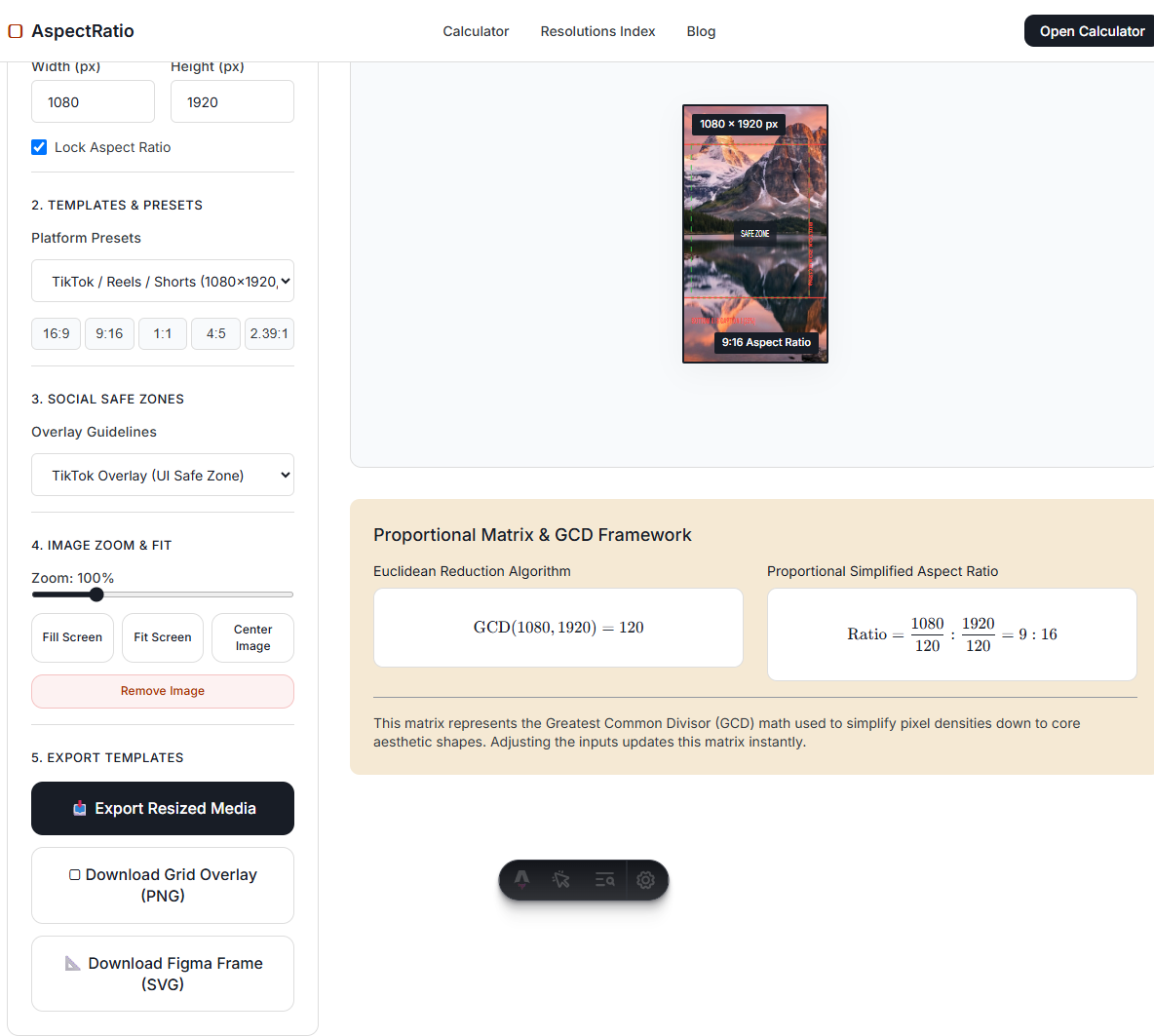 Step 4: Safe zone boundaries outline overlay zones for TikTok header and sidebar.
Step 5: Exporting Your Templates
Once your media is positioned, click Export Resized Media to render the high-quality crop directly to your downloads. You can also download a transparent PNG guideline overlay via Download Grid Overlay or an SVG artboard frame for Figma via Download Figma Frame.